Table of Contents
Operator's interface
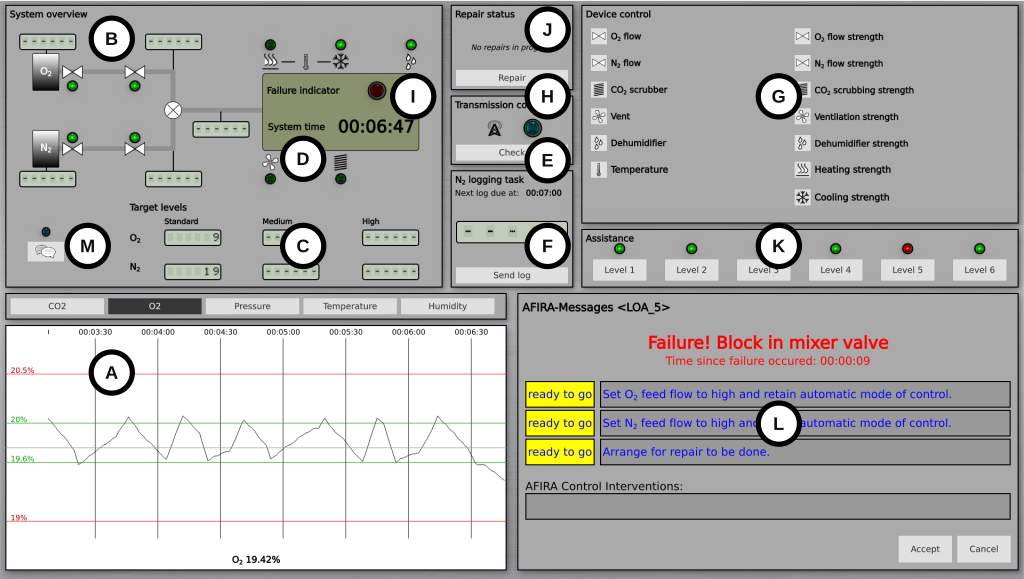
The operator’s interface is organized into several sections / panels:
- (A) history display showing graphs of the five key parameters;
- (B) system layout with a functional diagram of the cabin, including the status of specific devices like valves and flow meter readings;
- (C) target values for flow rates;
- (D) current system time;
- (E) a transmission control signal and response button for the secondary task of probe detection;
- (F) a panel for the nitrogen logging task related to prospective memory;
- (G) a control panel for manual system control;
- (H) a repair request button;
- (I) a system failure indicator;
- (J) a repair status indicator;
- (K) an automatic support level indicator;
- (L) the Automated Fault Identification and Recovery Agent (AFIRA); and
- (M) a button to access the chat function.
In the system overview (B), green signals indicate active devices and open valves. Tank level and flow meter readings are hidden by default and require the participant to click or tap the display to view the current reading. This action is logged, and the display disappears after 15 seconds, enabling later analysis of information sampling behavior.
System overview
The system overview panel shows a schematic representation of the system and its devices. Next to each device a green lamp signals when the device itself is turned on (or when a valve is open). When a device operates in automatic control mode the lamp will turn on and off periodically. If a fault prevents a device from being turned off the lamp will stay on. Gas flow displays can be activated by clicking on them: the value will disappear automatically after 15 seconds.
The Failure indicator will illuminate when a fault is detected (LOA2 or higher), whereas the System time will show the time elapsed during the simulation run.
Control panel for manual system control
The control panel show the devices installed in the spacecraft. By clicking on a device it is possible to briefly show the corresponding control switch. On the left hand side of the panel it is possible to turn devices and gas valves on or off, or to leave them on automatic operation. On the right hand side of the panel it is possible to select the strenght/intensity/power of a device or gas flow.