Experiment Manager
The experiment manager (aka TeamCAMS Manager) is a native application (currently for Windows and GNU/Linux operating systems) that allows researcher to define experimental setups and run those experiments. The application acts both as a server, allowing operators to connect remotely to an experiment, and as a manager to define roles and to collect results.
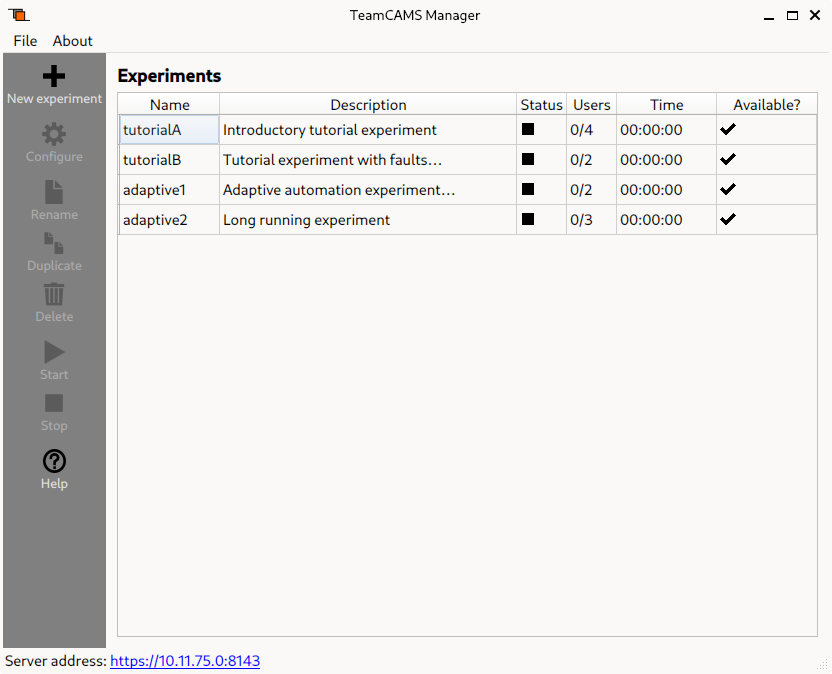
The main window shows a list of all configured experiments. Each experiment has a unique name and might have a user-provided description. An experiment can be started, be paused or be stopped by selecting the corresponding item in the list and then clicking on desired button in the left toolbar. The current status of an experiment is shown in the status column. To allow operators to connect to an experiment the experiment itself must be available (sixth column). It is possible to create a new experiment by clicking on the corresponding button in the toolbar. Similarly, it is possible to rename, duplicate or delete an existing experiment.
Configuration
By double clicking on an experiment (or by selecting an experiment from the list and choosing Configure). A configuration dialog will appear.
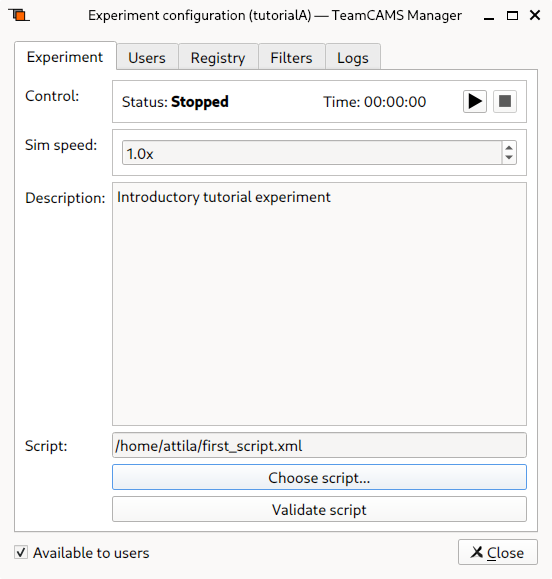
The configuration dialog is divided into multiple tabs. The first tab allows you to control the status of the experiment, edit its description and select a script. On the bottom of the dialog a check box is used to make the experiment available to operators.
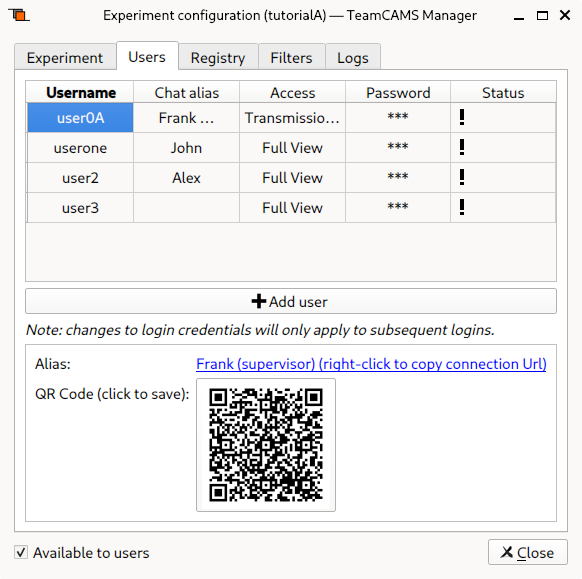
The Users tab allows you to configure the operator's credentials as well as the access type. When selecting an user it is possible to obtain the connection link in the lower part of the dialog or a QR code for a quick connection. Clicking on an item in the Access column allows for restricting the operator's interface to a single panel or to allow the simulation to automatically start (or restart) whenever the operator's connects to the experiment.
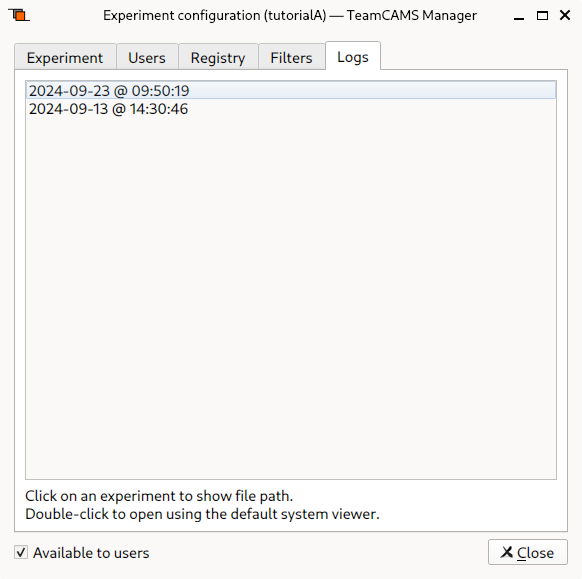
The last tab is used to view and access the logs generated during each experiment run. By clicking on an item the full path of the log is shown, whereas by double-clicking the log file will be opened in the default editor.