Technical Details
The Settings dialog allows researchers to configure how TeamCAMS Manager communicates with Operator Interfaces and how it identifies itself within the TeamCAMS ecosystem.
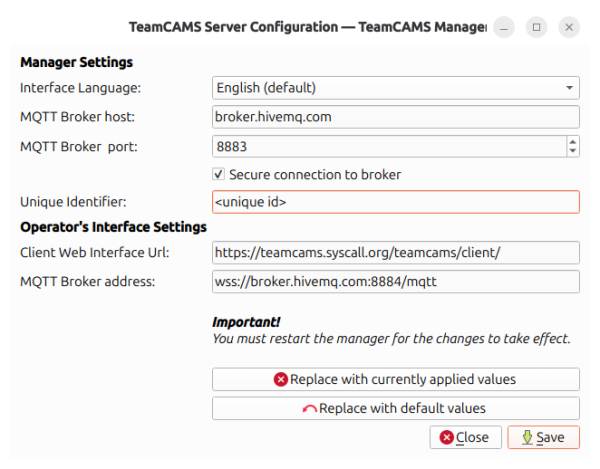
Communication Architecture
TeamCAMS uses a distributed architecture in which the Manager acts as the central server for all experimental sessions run by a researcher. The Manager maintains the simulation state, executes scenarios, stores experimental data, and coordinates all connected participants.
Communication between the Manager and the browser-based Operator Interfaces is performed through an MQTT messaging layer. Operator Interfaces connect to the MQTT broker through WebSockets, while the Manager connects directly to the broker using the MQTT protocol. The broker acts as a secure message relay, allowing researchers and participants to communicate even when they are located on different networks.
Manager Settings
Interface Language
Selects the language used by the TeamCAMS Manager user interface. Changes take effect after restarting the application.
MQTT Broker Host
Specifies the MQTT broker hostname used by the Manager.
The default configuration uses the public broker provided by HiveMQ:
broker.hivemq.com
MQTT Broker Port
Specifies the port used for MQTT communication.
The default secure configuration uses:
8883
Secure Connection to Broker
When enabled, all communication between the Manager and the MQTT broker is encrypted using TLS. This option should normally remain enabled.
Unique Identifier
Each TeamCAMS Manager instance is assigned a unique identifier (UUID).
Example:
01a01f1d-0984-73d8-b005-63567b80e30dab
This identifier distinguishes one Manager installation from all others and is used when generating participant connection links. For most users there is no need to modify this value. Changing the UUID will cause newly generated participant links and QR codes to differ from previously generated ones. The primary reason for preserving or manually copying a UUID is when migrating a TeamCAMS Manager installation to a different computer while keeping existing participant links valid.
Operator Interface Settings
Client Web Interface URL
Specifies the web address used by participants to access the Operator Interface.
By default, TeamCAMS uses the official Operator Interface instance:
https://teamcams.syscall.org/teamcams/client/
Normally this setting does not need to be changed. Researchers may configure an alternative URL if they host their own Operator Interface instance.
MQTT Broker Address
Specifies the MQTT broker endpoint used by browser-based Operator Interfaces. The default value is:
wss://broker.hivemq.com:8884/mqtt
The wss:// prefix indicates a secure WebSocket connection.
This setting must be compatible with the MQTT Broker Host and Port configured above.
Saving Changes
Any modifications made in the configuration dialog require a restart of TeamCAMS Manager before they become active.
Use:
- Save to store the configuration.
- Replace with currently applied values to discard unsaved changes and restore the currently active configuration.
- Replace with default values to restore the factory-default settings.
System Tray Operation
Closing the main TeamCAMS Manager window does not terminate the application. Instead, the Manager continues running in the background and an icon remains visible in the system tray (notification area). The tray icon can be used to:
- Restore the main application window.
- Bring the Manager back to the foreground.
- Verify that the Manager is still running.
This behavior allows experimental sessions to continue uninterrupted even if the main window is accidentally closed.
Single-Instance Application
Only one TeamCAMS Manager instance can run at a time on a given computer. If a second instance is started while another instance is already running, TeamCAMS displays an error message and the new instance immediately terminates. After exiting TeamCAMS Manager, it may be necessary to wait a few seconds before starting a new instance. This allows the operating system to release any resources and communication channels used by the previous process.
Configuration Storage
TeamCAMS Manager stores its settings using the Qt configuration system.
Linux
Configuration files are stored under:
$HOME/.config/University of Fribourg/
Windows
Configuration files are stored in the user's roaming AppData directory:
%APPDATA%\University of Fribourg\
A typical location is:
C:\Users\<username>\AppData\Roaming\University of Fribourg\
Session Logs
Experimental session logs generated by TeamCAMS Manager are stored separately from the application configuration.
Linux
Logs are stored under:
$HOME/.local/share/University of Fribourg/TeamCAMSManager/Logs
Windows
Logs are stored under the Qt AppDataLocation directory:
%APPDATA%\University of Fribourg\TeamCAMSManager\Logs
A typical location is:
C:\Users\<username>\AppData\Roaming\University of Fribourg\TeamCAMSManager\Logs
These CSV log files contain all events recorded during experimental sessions and can subsequently be processed using the TeamCAMS Log Processor.