Quick Start Guide
Use the TeamCAMS Editor to create and edit experiment scripts for TeamCAMS. A script contains a list of events that are scheduled to happen during an experimental run. Those events allow you to trigger system faults, control the parameters of the simulation or change the user interface during each run.
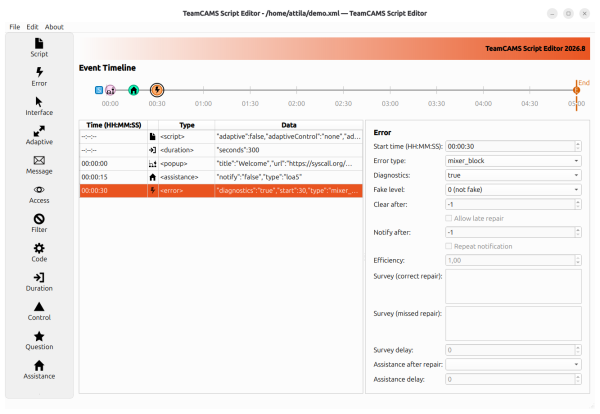
The menu and the toolbar
The menu allows you to open and save scripts. If you make a mistake during editing you can undo your changes by means of the corresponding action (you can also redo your changes). When you change a script it might be necessary to validate its contents before using it inside an experiment. The Validate script command will tell you if there is any problem with the script (for example, if a required parameter hasn't been configured yet).
The palette
On the left you can access the palette of events/items that you can add to the timeline defined by the script. By clicking on an item a new element is added to the script.
The timeline
The current timeline of scheduled events is shown in the middle of the window: most events has an associated timestamp, a type and specific parameters. Script-wide configuration events will have no timestamp associated. You can remove an item or duplicate an item by right-clicking on an item.
Configuration panel
When you select an item from the timeline a configuration panel will appear.