Table of Contents
TeamCAMS Operator Interface
The TeamCAMS Operator Interface is the primary access point for participants taking part in TeamCAMS experiments.
Developed as part of the latest generation of TeamCAMS, and building upon experience gained with the earlier AutoCAMS 2.0 research environment, the Operator Interface delivers a modern, browser-based experience that enables participants to engage with complex simulation scenarios in real time. Through the interface, operators can monitor and control elements of the simulated environment, collaborate with other team members, exchange messages using integrated communication tools, complete training exercises, and respond to dynamic events as they unfold during a session.

One of the key advantages of the Operator Interface is its accessibility. Unlike the Experiment Manager and Script Editor, which are intended for researchers and require installation, the Operator Interface runs entirely within a standard web browser. No additional software needs to be installed, configured, or maintained by participants.
Researchers simply provide participants with a secure access link or QR code, allowing them to join their assigned session from virtually any device, including desktop computers, laptops, and tablets. This web-based approach simplifies deployment, reduces technical barriers for participants, and makes TeamCAMS equally suitable for traditional laboratory experiments and large-scale studies involving geographically distributed teams.
By combining ease of access with real-time collaboration capabilities, the Operator Interface enables researchers to conduct realistic investigations of human performance, teamwork, automation, and human-AI interaction in a controlled yet highly flexible experimental environment.
Default Layout of the Operator Interface
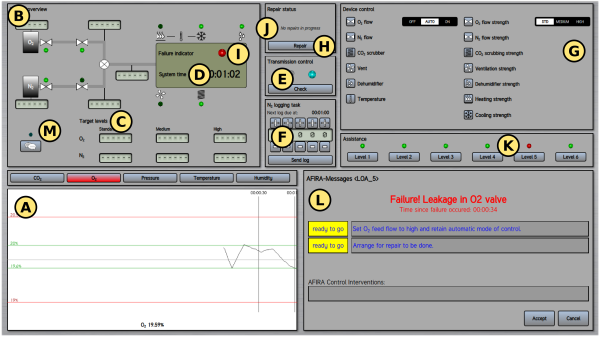
The interface is organized into several functional areas:
- System Overview – Displays the current state of the simulated cabin, including tanks, valves, flow meters, and other devices.
- Parameter Monitoring – Shows trends and current values for the main cabin parameters (oxygen, carbon dioxide, temperature, pressure, and humidity).
- Target Values – Displays the desired operating values for key system parameters.
- System Clock – Shows the current simulation time.
- Secondary Task Controls – Provides access to additional experimental tasks such as probe detection and prospective memory activities.
- Device Control Panel – Allows operators to monitor automated control and manually override individual devices when required.
- Fault and Repair Indicators – Show equipment failures, repair requests, and repair status information.
- Automation Status – Indicates the current level of automated support and displays information provided by the automation assistant (AFIRA).
- Messaging System – Enables communication between participants and the experimenter.
Monitoring Cabin Parameters
The monitoring panel displays the five main cabin parameters:
- Oxygen
- Carbon Dioxide
- Pressure
- Temperature
- Humidity
For each parameter, TeamCAMS shows the current value together with its recent history. Graphs allow operators to quickly identify trends and detect abnormal conditions.
Some information panels are displayed only when selected by the participant. These interactions are recorded automatically, allowing researchers to analyze information-monitoring behaviour during the experiment.
Manual Device Control
Although the simulated system is normally controlled automatically, operators can manually override individual subsystems whenever necessary.
To access a control, click on the corresponding device in the control panel. Each device can be set to one of three modes:
- OFF – The subsystem is disabled.
- AUTO – The subsystem is controlled automatically by TeamCAMS.
- ON – The subsystem remains continuously active.
Manual control is particularly important when diagnosing faults or responding to situations where automation may be unreliable.
All control actions are logged and become part of the experimental dataset.
Messaging and Team Communication
TeamCAMS includes an integrated messaging system that supports communication between participants and the experimenter.
Using the messaging panel, operators can:
- Receive instructions and scenario-related information.
- Communicate with other participants.
- Send public messages to the entire team.
- Exchange private messages with specific operators.
Depending on the experimental configuration, the messaging system may appear as a dedicated window or as part of the main interface. Incoming messages generate visual notifications to ensure they are not missed.
All communications are recorded and can later be analyzed by the researcher.
Multi-Device Configurations
The Operator Interface can be distributed across multiple devices if required by the experimental design.
For example, researchers may choose to:
- Display monitoring panels on one screen.
- Use a dedicated touch-screen device for system controls.
- Present secondary tasks on a smartphone or tablet.
- Assign different interface components to different team members.
This flexibility makes TeamCAMS suitable for studies involving teamwork, task allocation, distributed operations, and complex collaborative environments. The platform can also be integrated with custom hardware and specialized physical control panels to create higher-fidelity simulation setups.