Table of Contents
Quick Start Guide
Getting started with TeamCAMS Manager is straightforward. A typical study begins with the researcher launching the Manager application and loading an experimental scenario. After configuring participant accounts and assigning the appropriate operator permissions, the experiment can be started directly from the Manager. Participants then join the session through the web-based Operator Interface using a shared access link, without the need to install any additional software.
During the experiment, TeamCAMS automatically records participant actions, simulation events, and performance data. Once the session has been completed, the generated log files can be analyzed using the Log Processor, which extracts and organizes the relevant information into datasets ready for statistical analysis. This workflow enables researchers to efficiently conduct controlled studies with both local and geographically distributed participants while maintaining centralized management of the experiment and its data.
The Main Window
The central area of the window displays the list of configured experiments. The vertical toolbar on the left provides quick access to the main experiment management functions, including creating new experiments, configuring settings, renaming, duplicating, deleting, and controlling the execution of the selected experiment. Most of these actions can also be accessed through the context menu by right-clicking an experiment in the list and selecting the desired option.
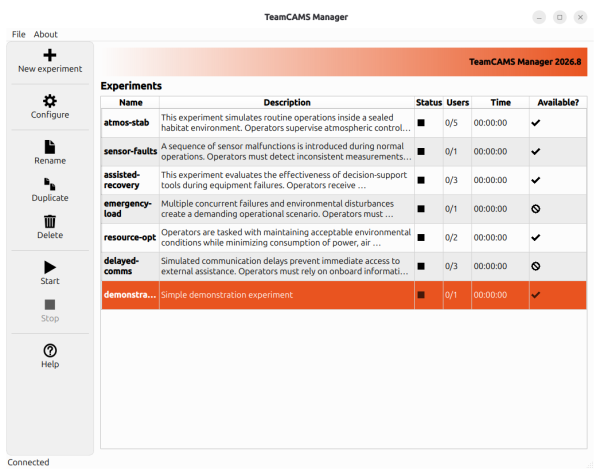
Experiments must have a unique name. Experiment names must not contain spaces or any of the following special characters: > _ , < > / \ : | " ? * %
For compatibility and portability across different operating systems and file systems, we recommend using only letters (A-Z, a-z), numbers (0-9), and hyphens (-) when naming experiments. Examples:
- ✅
StressStudy-01 - ✅
TeamExperiment2026 - ✅
HumanAI-Collaboration - ❌
Stress Study 01(contains spaces) - ❌
Team_Experiment(contains_) - ❌
Human/AI Test(contains/and spaces)
Configuring an Experiment
Once an experiment has been created, it can be configured by either double-clicking its entry in the experiment list or by selecting it and clicking Configure in the toolbar. This opens the Experiment Configuration dialog, where all aspects of the experiment can be customized.
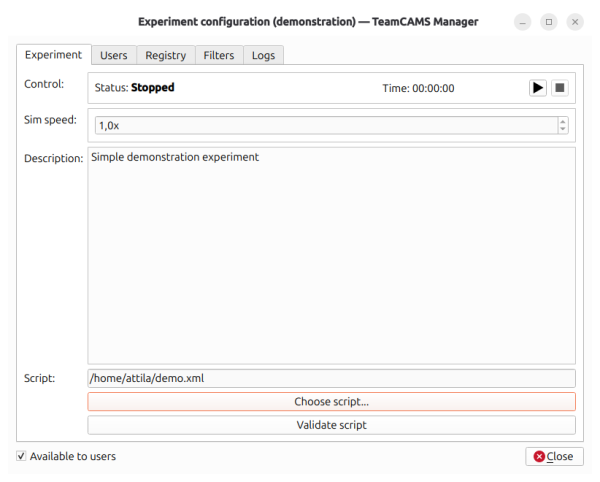
The configuration dialog is organized into several pages, each providing access to a specific set of settings.
Experiment
The Experiment page contains the general settings for the experiment. Here you can:
- Enter a textual description of the experiment.
- Select the script (scenario) that will be executed during each session.
- Start, pause, or stop experimental sessions using the controls in the Control panel.
- Adjust the simulation speed to accelerate or slow down scenario execution.
Important: The selected script is referenced by its file path and is not embedded into the experiment configuration. Whenever a new session starts, the latest version of the script is loaded directly from disk. As a result, any modifications made with the Script Editor automatically become available in future sessions without requiring the script to be reselected.
Increasing the simulation speed can be particularly useful during scenario development and testing, as it allows researchers to quickly skip less relevant parts of the simulation.
Users
The Users page is used to manage participants who are allowed to join the experiment through the Operator Interface.
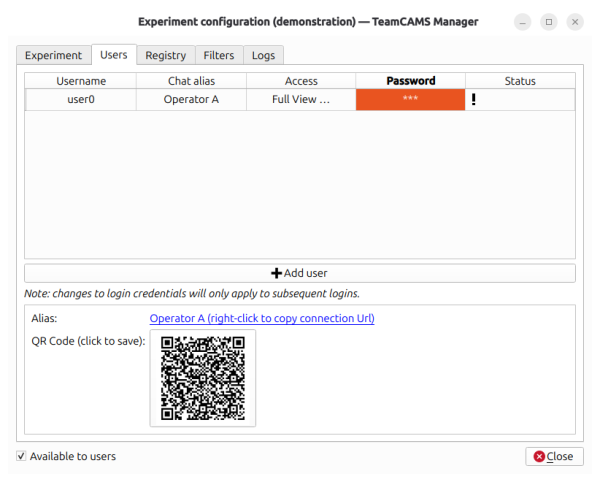
For each participant you can configure:
- A unique username.
- An alias displayed in the messaging panel.
- The assigned layout (access type).
- A participant password.
Aliases are optional and may be left empty if you do not want the participant to appear in the list of connected operators.
To prevent unauthorized access, each user is assigned a password. You may either use the automatically generated password or define your own.
The user table also indicates the current connection status of each participant:
- ✅ Connected
- ⚠️ Not connected
When a user is selected, the lower part of the window displays:
- A connection URL.
- A QR code containing the connection information.
The connection URL can be copied by right-clicking on it, while the QR code can be saved as an image by clicking on it.
Registry
The Registry page is primarily intended for debugging and monitoring purposes. It displays the current values of the simulation variables and parameters during an active session.
When no session is running, this page remains empty.
Filters
The Filters page provides information about the current status of message filtering within the simulation.
Filters can be controlled by the scenario script to block or allow specific communications between the Manager and the Operator Interfaces. This functionality can be used to simulate communication disruptions or other network-related events as part of an experimental scenario.
This page is read-only and serves exclusively as a monitoring tool. Filters can only be modified through script events defined in the scenario.
Logs
The Logs page contains a list of all recorded experimental sessions associated with the experiment.
From this page you can:
- Review previously recorded sessions.
- Export the corresponding log files.
- Save session data as CSV files for further analysis using the Log Processor or external statistical software.
Experiment Availability
Newly created experiments are not available to participants by default. This allows researchers to fully configure and test the experiment before granting access to operators.
To make an experiment accessible, simply enable the Available to users option. Once enabled, participants can connect using the generated access link or QR code provided in the Users section of the configuration dialog.
At any time, the experiment can be temporarily removed from public access by disabling the Available to users option. This prevents new participant connections while preserving all experiment settings and recorded data.
This mechanism provides a simple way to control when an experiment is open for participation and helps ensure that only fully prepared sessions are made available to users.